Tech Republic

How to Add Fingerprint Authentication to Your Windows 11 Computer

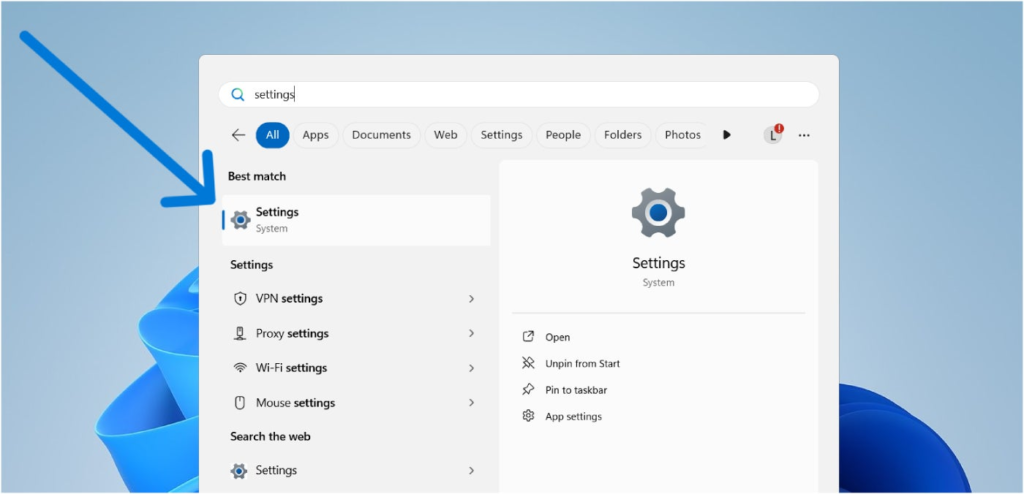
If you’ve recently purchased or received a Windows 11 computer, one of the first things I recommend you do is to add fingerprint authentication as one of your sign-in options. This provides your computer or laptop with an additional layer of security and makes the login process much faster than a regular password. While Windows machines can vary in how fingerprint authentication is implemented, setting up fingerprint logins is more or less consistent across all computers running Windows 11. In this article, I will show you how to add fingerprint authentication to your Windows 11 computer, answer some frequently asked questions, and provide a few benefits of fingerprint unlock for your machine. NordPass Employees per Company Size Micro (0-49), Small (50-249), Medium (250-999), Large (1,000-4,999), Enterprise (5,000+) Micro (0-49 Employees), Small (50-249 Employees), Medium (250-999 Employees), Large (1,000-4,999 Employees), Enterprise (5,000+ Employees) Micro, Small, Medium, Large, Enterprise Features Activity Log, Business Admin Panel for user management, Company-wide settings, and more Dashlane Employees per Company Size Micro (0-49), Small (50-249), Medium (250-999), Large (1,000-4,999), Enterprise (5,000+) Micro (0-49 Employees), Small (50-249 Employees), Medium (250-999 Employees), Large (1,000-4,999 Employees), Enterprise (5,000+ Employees) Micro, Small, Medium, Large, Enterprise Features Automated Provisioning ManageEngine ADSelfService Plus Employees per Company Size Micro (0-49), Small (50-249), Medium (250-999), Large (1,000-4,999), Enterprise (5,000+) Any Company Size Any Company Size Features Access Management, Compliance Management, Credential Management, and more How can I set up fingerprint recognition on Windows 11? Before we begin, I must mention that this tutorial applies to laptops or computers with access to a fingerprint sensor. These days, many consumer and business laptops already include a fingerprint sensor built into the device itself. For those without a sensor, there are a variety of USB fingerprint sensors that can be purchased as a separate add-on. These sensors plug into your laptop’s USB ports and add fingerprint functionality without adding much bulk to your machine. With that out of the way, let’s begin setting up fingerprint recognition on your Windows 11 computer. 1. Go to the Windows 11 Settings app. The first step in enabling fingerprint authentication is to access the Settings app within Windows 11. There are many ways to access the Windows Settings app. Personally, I feel the fastest way is to press the Windows Key on your keyboard and start typing “settings.” This will automatically pull up the Settings app on your Start menu. Typing “settings” on the Windows 11 Start menu. Image: Luis Millares You can also access the Settings app by going to the Start menu and navigating through your apps. The Settings app will typically be found at the bottom of the list, as apps are organized in alphabetical order by default. 2. Navigate to the Accounts menu from the sidebar. Once you’ve opened your Settings app, look to the sidebar at the left and select the Accounts menu. Accounts menu on Settings app sidebar. Image: Luis Millares The Accounts menu houses all configurations regarding accounts on your Windows 11 computer. This includes your personal info, email and accounts, device access, and the like. It also features all settings related to Sign-in options — which is our next step. 3. Click Sign-in options. From the Accounts menu, select Sign-in options. This menu contains all the possible methods to sign in to your device. Sign-in options button on the Accounts menu. Image: Luis Millares The usual sign-in methods found here are sign-in via password, PIN, and security key. If your laptop or computer supports it, this is also where you’ll find Windows Hello, with the option to sign in using either facial or fingerprint recognition. Windows Hello is the main biometric authentication feature included in the Microsoft Windows operating system since 2015. First introduced in Windows 10, it’s now the primary way to add fingerprints in Windows 11. 4. Select Fingerprint recognition (Windows Hello) and “Set up.” From the Sign-in options, we can now select Fingerprint recognition using Windows Hello. When you click Fingerprint Recognition, a “Set up” button will appear. Fingerprint and Set up buttons are in the sign-in options menu. Image: Luis Millares Select the Set up button, and the process for inputting your fingerprint will start. First, Windows will ask you to provide your PIN or ask you to make one if you don’t already have one set up. Windows asking for PIN before fingerprint set up. Image: Luis Millares It’s important to remember your PIN as it serves as your backup authentication if your fingerprint isn’t read properly. After a set number of failed fingerprint attempts, Windows 11 will ask for your PIN instead, allowing you to log in when there’s a glitch with your fingerprint sensor or if you cannot use that method at certain times. Once you’ve added your PIN, Windows Hello will ask you to contact your device’s fingerprint sensor and add your biometric data to the system. Windows Hello prompts the user to touch the fingerprint sensor. Image: Luis Millares Expect that Windows Hello will instruct you to touch the fingerprint sensor multiple times with different areas of your fingerprint. This is so it can get an accurate print reading and enable you to sign in with your fingerprint at various angles. Inputting your fingerprint on Windows Hello multiple times. Image: Luis Millares Once you’ve completed the necessary amount of fingerprint inputs, Windows Hello will inform you that your fingerprint was successfully added, and you’re done! Successful fingerprint added to Windows 11. Image: Luis Millares You can now sign in to your laptop or desktop computer via fingerprint authentication. Must-read security coverage Frequently asked questions about Windows 11 fingerprint log-in Can I use multiple fingerprints to log in to Windows 11? Yes, Windows 11 lets you add multiple fingerprints to log into your computer. In practice, this means you can have both your right and left index fingerprints as a means to unlock your computer. If you’re wondering if there’s a maximum number of fingerprints for Windows Hello, some Microsoft support pages have said

How to Add Fingerprint Authentication to Your Windows 11 Computer Read More »

Is QuickBooks Checking Worth It? Unbiased Review & Insights

Many are familiar with QuickBooks products, and one of them is the QuickBooks Checking account. It used to be available only to QuickBooks Online users but has since been offered free through QuickBooks Money. The QuickBooks business account does not charge a monthly fee or require an initial deposit or minimum balance. It has a high annual percentage yield (APY) of 5.0% through its savings envelopes feature. Businesses can also benefit from its cash flow forecasting, customized invoicing, and high FDIC insurance protection. However, free ATM withdrawals are limited to four per month and cash deposits are not allowed. QuickBooks’ fast facts Our rating: 4.09 out of 5 Starting price: Free business checking account Key features for QuickBooks Business Checking: No monthly fees or required balances. No opening deposit. Instant deposit. Four fee-free ATM withdrawals monthly. 5.0% through savings envelopes. Syncs with other QuickBooks software. QuickBooks Online, QuickBooks Payments, QuickBooks Payroll, and more Image: QuickBooks Many small businesses integrate with QuickBooks Online for accounting, payroll, and payments. Companies may want to learn how linking up with a QuickBooks business checking account can help streamline the management of their funds. With budgeting, forecasting, and invoicing tools, QuickBooks supports small businesses in organizing their finances and maximizing the use of other QuickBooks products for efficiency. Let’s evaluate QuickBooks Checking’s standout features and pricing structure to learn how it compares with other financial providers. QuickBooks Checking Reviews: What Users Think of QuickBooks 1.5/5 There are limited QuickBooks Checking reviews on third-party sites. On Trustpilot, its rating is 1.2 out of 5 from over 800 reviews. Many complained about the new QuickBooks subscription prices and considered the product overpriced. Others also reported their frustration over reaching customer support since they had to wade through multiple questions. They said they were transferred to different agents, and no clear resolutions were offered to their issues. Some reviewers stated that the software is counterintuitive and slow. Another recounted that a direct deposit error took a week to fix and required constant callbacks with the customer service team. Others claimed that their refund requests were denied. Very few gave positive feedback about the quality of customer support they received. QuickBooks Checking Pricing Structure 3.96/5 Previously, you needed to subscribe to QuickBooks Online to open a free QuickBooks Checking account. Now, you can sign up for free through QuickBooks Money, which lets you access money management tools like cash flow forecasting. The lack of standard business account fees makes it an attractive online account option for small business owners, especially QuickBooks Online users. QuickBooks Checking account: No monthly fees or required balances. No opening deposit. No automated clearing house (ACH) and overdraft fees. Four fee-free ATM withdrawals monthly. $3 per withdrawal and nonnetwork ATMs past the free limit. Free incoming domestic wire transfers only. QuickBooks only offers one type of checking product. It is ideal for those who like transacting online as cash deposits are not accepted. Free ATM withdrawals have a limit of four monthly. Beyond that, you will incur a fee of $3 per transaction. Would Our Expert Use QuickBooks Checking? 4.7/5 If most of your transactions are online or you already use QuickBooks Online software, I recommend opening a QuickBooks Checking account. You won’t need to pay monthly maintenance fees, initial deposits, or maintain a minimum balance. If your funds are above $250,000, it is FDIC-insured for up to $5 million through its sweep program. I like the substantial APY of 5.0% that you can access through savings envelopes. You can also send customized invoices and receive instant deposits without paying processing fees as long as you connect your debit card with QuickBooks Payment. However, if your business is cash-reliant and you need to deposit and withdraw cash regularly, consider heading to a traditional bank like Chase. For free bookkeeping tools, an excellent option is Found. Before opening an account, see our article on how to open a business bank account to learn the step-by-step process. QuickBooks Checking Pros Fee-free checking: No monthly fees, minimum balances, or initial deposit requirements. Instant deposits: Using QuickBooks Payments, deposits can be made into your QuickBooks Checking account in minutes. Competitive APY: Earn 5.0% APY when you set aside funds through savings envelopes. Seamless integration with QuickBooks Online: Users can sync QuickBooks accounting information in real time. QuickBooks Checking Cons Limited free withdrawals: QuickBooks Checking only allows four free ATM withdrawals at Allpoint ATMs monthly and charges $3 thereafter. Requires subscription to access accounting tools: To access bookkeeping tools, you must pay for QuickBooks Online. No brick-and-mortar branches: QuickBooks is an online-only platform and does not offer in-person banking services. More Banking Coverage Alternatives to QuickBooks Checking If QuickBooks Checking doesn’t fit all your needs, here are some alternatives to consider: Novo Business Checking Chase Business Complete BankingSM Found Business Checking Starting Price Free Free Free Key Features International payments via Wise Unlimited free invoicing Refundable ATM fees Many physical locations  QuickBooks integration Cashback bonus for new accounts Integrated bookkeeping and tax toolsNo ACH feesExpense tracking with receipt capture Key Distinctions Up to $7 ATM fee refunds monthly Branches in 48 lower states Free built-in bookkeeping software Learn More Visit Novo Visit Chase Visit Found Methodology I researched the QuickBooks business checking account online, comparing it to other financial providers for monthly fees, opening deposits, and minimum balances, including APY offerings. I also evaluated user reviews from third-party sites to gauge customer satisfaction. Conclusion QuickBooks Checking scores high on minimal fees, superior interest, and seamless integration with QuickBooks products. However, businesses that prefer to bank in person and often perform wire transfers and ATM withdrawals can look for other options. Frequently asked questions What are the fees associated with QuickBooks Checking? With a QuickBooks Checking account, there are no account opening fees, monthly fees, instant deposit fees, and ACH fees. You can also make four free ATM withdrawals at Allpoint ATMs. Beyond that, you will pay a $3 fee. Is QuickBooks Checking suitable for small businesses? Yes. QuickBooks Checking can be a good fit for small businesses, especially

Is QuickBooks Checking Worth It? Unbiased Review & Insights Read More »

NBKC Business Checking Review: Features, Fees, and Insights

NBKC Bank offers small businesses superb savings with a fee-free business checking account. You save on monthly fees, incoming domestic wires, and overdraft fees. You’re also not required to make an initial deposit and maintain a minimum balance. Although NBKC has only four branches in Kansas and Missouri, opening an account online is available in all states. NBKC’s fast facts Our rating: 4.65 out of 5 Starting price: Free business checking account. Key features of NBKC Business Checking: No monthly fees or balance minimums. Fee-free account. Free debit card. Unlimited check deposits. Autobooks for invoicing. ATM fee rebates (up to $12 for nonnetwork). Image: NBKC Bank The NBKC Business Checking account is ideal for small businesses seeking to minimize the banking fees typically charged by most banks. You won’t need to worry about paying multiple fees since NBKC prioritizes offering customers a zero-cost business account. You can also access plenty of business solutions to streamline your cash management with several options to collect payments. Let’s explore the NBKC Business Checking features, pricing structure, and pros and cons to learn how it differs from what other financial providers offer. NBKC Business Checking Reviews: What Users Think of NBKC 4.85/5 NBKC received high user ratings, showing 4.8 on Trustpilot from around 800 reviews and 4.9 on WalletHub based on over 10,000 reviews. There were no specific NBKC Business Checking reviews written. Many praised the excellent customer service, specifically mentioning the bank representatives who assisted with mortgage loan approvals. Users also appreciated the rates provided by the bank. For NBKC’s mobile banking, app feedback is excellent. Several reviewers stated it was reliable and simple to navigate. However, a few users mentioned that they ran into issues such as slow loading of the app, even if they had already re-installed it. Some also found the app underwhelming, while others suggested additional features to improve it. NBKC Business Checking Pricing Structure 4.79/5 With NBKC, business customers can save on numerous banking fees, such as monthly fees, opening deposits, incoming domestic wires, overdrafts, and ATM fees. NBKC Business Checking account: No monthly fees and no initial deposit requirement. $0 incoming and $5 outgoing domestic wire transfers. $45 for all international wire transfers. No ATM fee for MoneyPass ATM usage. Up to $12 ATM fee rebates for nonnetwork. No overdraft fees. ACH credits and debits ($15 monthly or $150 yearly). Desktop deposits ($15 monthly or $150 yearly). Business fraud tools ($5 monthly or $50 yearly). NBKC Business Checking Key Features 4.1/5 NBKC helps businesses save through its fee-free business checking account. See the detailed features below to learn more about its competitive advantages. Key features for NBKC Business Checking: No monthly fees or balance requirements. Fee-free account. Unlimited check deposits. Autobooks for invoicing. Access MoneyPass ATMs & ATM fee rebates. No Monthly Fees and Balance Requirements An NBKC Bank Business Checking account does not charge a monthly fee or require a minimum balance. Fee-free Account Largely fee-free, NBKC lets you save on an initial opening deposit, overdraft fees, in-branch and mobile check deposits, eStatements, and incoming domestic wires. You can also enjoy Bill Pay and business online banking without paying for the service, including fee-free stop payments if you need to cancel one. Unlimited Check Deposits Transactions are unlimited with NBKC since it does not charge per-item fees, including check deposit fees. Autobooks for invoicing You can create invoices and track payments easily through Autobooks. Account holders can access a 30-day free Autobooks subscription and pay $10 monthly after the trial period. Access MoneyPass ATMs & ATM Fee Rebates You can transact at over 40,000 MoneyPass ATMs without fee charges. The bank also offers a $12 ATM fee rebate to cover third-party operator surcharges. Would Our Expert Use NBKC Business Checking? 4.85/5 Small businesses can save a lot with the NBKC Business Checking account since — aside from the typical monthly maintenance and initial deposit charges — it waives multiple fees. You also won’t need to pay for insufficient and overdraft fees, incoming domestic wire transfers, check and cash deposits, or stop payments. Customers can access rebates of up to $12 for third-party ATM surcharges. I recommend this account because it provides you with flexibility. You have the option to subscribe to the banking services that you need. In addition, I also like that you can access over 40,000 MoneyPass ATMs apart from the bank’s in-house machines, which makes depositing and withdrawing cash very convenient. However, the bank has limited integrations, and you need to pay $10 monthly for an Autobooks subscription to send invoices to your clients. The checking account also does not earn interest and international wire transfers can be steep at $45. In addition, NBKC has only four branches located in Kansas and Missouri. You may want to consider Bluevine, Mercury, and U.S. Bank as alternatives. Before opening an account, see our article on how to open a business bank account to learn the step-by-step process. NBKC Business Checking Pros Fee-free checking: Most standard banking fees at NBKC are free. You won’t pay monthly fees, opening deposits, incoming domestic wires, and overdraft fees. Unlimited check deposits: Some providers may restrict the number of cash or check deposits you can make, unlike with NBKC. Online account opening: The business account is available in 50 states since you can open it online easily. NBKC Business Checking Cons No interest earnings: NBKC’s Business Checking account does not earn a yield. Meanwhile, Bluevine Standard offers 1.5% APY for qualifying balances of up to $250,000. No free invoicing: You need to sign up for Autobooks at $10 monthly to track client payments and send invoices, whereas Mercury offers unlimited and free invoicing. Limited branches: NBKC only has four branches in Kansas and Missouri. For in-person banking services, consider U.S. Bank, which has branch locations in 26 states. More Banking Coverage Alternatives to NBKC Business Checking If NBKC Business Checking is not the perfect fit for your business, here are some alternatives to consider: Bluevine Standard Starting price: Free.

NBKC Business Checking Review: Features, Fees, and Insights Read More »

Square Business Banking Review: Key Features & Costs 

Square is a financial technology (fintech) company well-known for its point-of-sale (POS) system. It offers diverse business banking products and services, which include checking, savings, loans, and credit cards. The Square Business Checking account Square is a financial technology company and not a bank. Square Checking is provided by Sutton Bank, Member FDIC.  provides small businesses with instant deposit access and minimal banking fees. It also has several integrations, which include eCommerce, accounting, marketing and loyalty, and team management apps. Square’s fast facts Our rating: 4.36 out of 5 Starting price: Free business checking account. Key features of Square Business Checking Account: No monthly fees or required opening deposit. Unlimited transactions. Free cash deposits at participating retailers. No ATM fees, but third-party operator surcharges apply. Multiple integrations with eCommerce, accounting, and other apps. Must be a Square POS user to open a business account. Image: Square Square’s Business Checking account suits small businesses that process payments through the Square POS system. With an easy-to-navigate dashboard, applying for a new Square checking account is quick. The fee-free business checking product provides prompt access to your sales and makes spending using a debit card easy. Let’s check out Square Business Checking’s standout features and pricing structure to see how it compares with other financial providers. Square Business Checking Reviews: What Users Think of Square 4.30/5 Square obtained a rating of 4.2 from around 5,400 reviews on Trustpilot. Several users were pleased with its payment processing system. They stated they never encountered any issues and appreciated its top-notch features. Specific Square checking account reviews were unavailable. Users praised it for its ease of use and timely processing. However, a few pointed out the glitches they experienced with Square and were dissatisfied with its lack of access to customer support. The Square mobile app has a high rating of 4.8 on the App Store from over 500,000 reviews, while it was rated 3.9 on Google Play from over 200,000 reviews. Reviewers mentioned that creating invoices on the app is easy and that they have never experienced payment issues. Others also liked the all-in-one reliable app for prompt fund transfers. Meanwhile, some complained about sudden deactivated accounts for potential fraud flagging and unsupported business industries. A few also claimed they couldn’t access customer support and found the app buggy. Square Business Checking Pricing Structure 4.43/5 Like some financial providers, the Square business checking account allows users to save on monthly maintenance fees and does not require an initial deposit. You can save further since it does not restrict transactions and charge excess items. Square Business Checking account: No monthly fees or balance minimums. No opening deposit. Unlimited transactions. 1.0% standard ACH fee per transaction. 1.75% same-day ACH fee per transaction. Unsupported wire transfers. No overdraft fees. $0 cash deposit fees at participating retailers. $0 ATM fees from Square; operator fees apply. Square Business Checking Key Features 4.0/5 Square provides users with fee-free business checking accounts, debit cards, and solid integrations with various business tools. Let’s check its features to see its competitive advantages over other providers. Key features for Square Business Checking: No monthly fees or initial deposits. Square debit card. Robust integrations. Instant transfers. Printable checks. No Monthly Fees and Initial Deposits The Square Business Checking account offers no monthly maintenance fees and account opening deposits, delivering plenty of savings to small businesses. Square Debit Card A Square debit card is issued when you sign up for a Square checking account. Aside from a physical card, you can link a virtual card to digital wallets. You can also order up to five free debit cards for your team to delegate business purchases, allowing more transparency over team spending. Instant Transfers Square allows you to transfer funds instantly from the Square POS app or your online Square dashboard. You must have a minimum balance of $25 for instant transfers and $1 for same-day transfers after Square’s processing and transfer fees. Lower limits can apply to new Square sellers. Instant transfers help small businesses access their funds quickly to support business needs. Robust Integrations Square integrates with secure and popular apps, such as QuickBooks Online, Wix, WooCommerce, Jotform, Shippo, SKU IQ, Thrive Inventory, Bookkeep, Stream, Printful, Poptin, OnTheClock, Digital Menu Boards, Trustpilot Reviews, and more. Printable Checks You can create checks from Square’s POS app or dashboard. You can then download, print a copy, or email it as a PDF attachment. Would Our Expert Use Square Business Checking? 4.70/5 If you’re a small business owner looking to instantly access your Square sales, opening a Square Business Checking account is a good move. Signing up takes just a few minutes, and you can integrate with other Square tools and popular apps to streamline your business operations. It is also cost-effective since no account fees are collected for monthly maintenance, transactions, or cash deposits. Free cash deposits at participating retailers. The Square business checking account also provides a debit card that you can use for purchases and withdrawals. However, you will be paying for potential third-party ATM surcharges since it does not have its own ATM network and does not refund ATM fees. You must also pay for standard and same-day ACH transactions, commonly offered for free by other fintech providers. If you seek to generate earnings from a checking account and often need to perform wire transfers, consider other options, such as Bluevine and Mercury. Should you need in-person banking services, U.S. Bank is a good option because it has several physical branches in 26 states. Before opening an account, see our article on how to open a business bank account to learn the step-by-step process. Square Business Checking Pros Fee-free checking: No monthly fees and minimum balance requirements. Connects with Square POS: Allow instant access to Square sales. Multiple integrations: Compatible with accounting and tax, eCommerce, marketing, and team management apps. Square Business Checking Cons Lacks APY earnings: The Square Business Checking account does not provide an APY. Meanwhile, Bluevine Standard has a 1.5% APY

Square Business Banking Review: Key Features & Costs  Read More »

DeepSeek Locked Down Public Database Access That Exposed Chat History

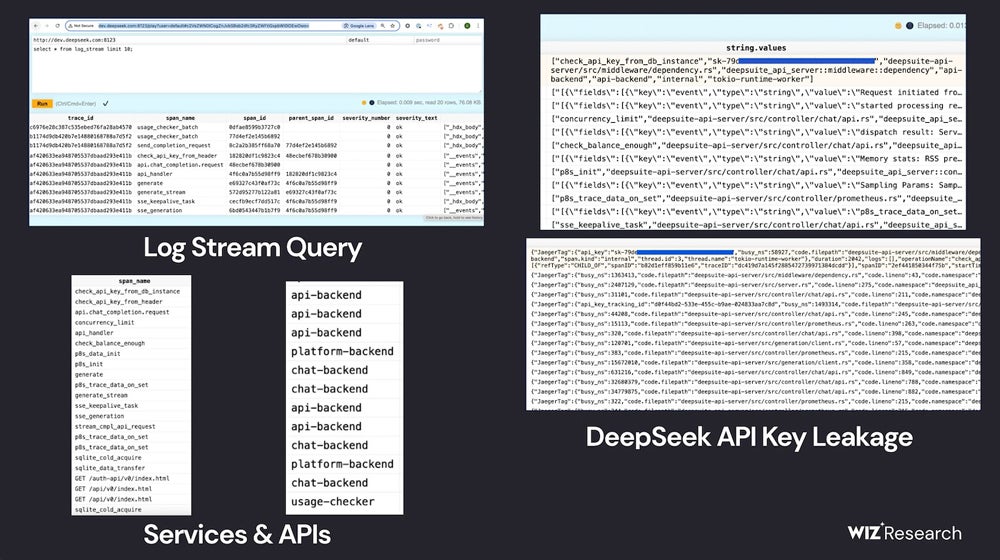
On Jan. 29, U.S.-based Wiz Research announced it responsibly disclosed a DeepSeek database previously open to the public, exposing chat logs and other sensitive information. DeepSeek locked down the database, but the discovery highlights possible risks with generative AI models, particularly international projects. DeepSeek shook up the tech industry over the last week as the Chinese company’s AI models rivaled American generative AI leaders. In particular, DeepSeek’s R1 competes with OpenAI o1 on some benchmarks. How did Wiz Research discover DeepSeek’s public database? In a blog post disclosing Wiz Research’s work, cloud security researcher Gal Nagli detailed how the team found a publicly accessible ClickHouse database belonging to DeepSeek. The database opened up potential paths for control of the database and privilege escalation attacks. Inside the database, Wiz Research could read chat history, backend data, log streams, API Secrets, and operational details. The team found the ClickHouse database “within minutes” as they assessed DeepSeek’s potential vulnerabilities. “We were shocked, and also felt a great sense of urgency to act fast, given the magnitude of the discovery,” Nagli said in an email to TechRepublic. They first assessed DeepSeek’s internet-facing subdomains, and two open ports struck them as unusual; those ports lead to DeepSeek’s database hosted on ClickHouse, the open-source database management system. By browsing the tables in ClickHouse, Wiz Research found chat history, API keys, operational metadata, and more. Wiz Research identified key DeepSeek information in the database. Image: Wiz Research The Wiz Research team noted they did not “execute intrusive queries” during the exploration process, per ethical research practices. More must-read AI coverage What does the publicly available database mean for DeepSeek’s AI? Wiz Research informed DeepSeek of the breach and the AI company locked down the database; therefore, DeepSeek AI products should not be affected. However, the possibility that the database could have remained open to attackers highlights the complexity of securing generative AI products. “While much of the attention around AI security is focused on futuristic threats, the real dangers often come from basic risks—like accidental external exposure of databases,” Nagli wrote in a blog post. IT professionals should be aware of the dangers of adopting new and untested products, especially generative AI, too quickly — give researchers time to find bugs and flaws in the systems. If possible, include cautious timelines in company generative AI use policies. SEE: Protecting and securing data has become more complicated in the days of generative AI. “As organizations rush to adopt AI tools and services from a growing number of startups and providers, it’s essential to remember that by doing so, we’re entrusting these companies with sensitive data,” Nagli said. Depending on your location, IT team members might need to be aware of regulations or security concerns that may apply to generative AI models originating in China. “For example, certain facts in China’s history or past are not presented by the models transparently or fully,” noted Unmesh Kulkarni, head of gen AI at data science firm Tredence, in an email to TechRepublic. “The data privacy implications of calling the hosted model are also unclear and most global companies would not be willing to do that. However, one should remember that DeepSeek models are open-source and can be deployed locally within a company’s private cloud or network environment. This would address the data privacy issues or leakage concerns.” Nagli also recommended self-hosted models when TechRepublic reached him by email. “Implementing strict access controls, data encryption, and network segmentation can further mitigate risks,” he wrote. “Organizations should ensure they have visibility and governance of the entire AI stack so they can analyze all risks, including usage of malicious models, exposure of training data, sensitive data in training, vulnerabilities in AI SDKs, exposure of AI services, and other toxic risk combinations that may exploited by attackers.” source

DeepSeek Locked Down Public Database Access That Exposed Chat History Read More »

Cloudflare Adopts Content Credentials for Image Authenticity

Cloudflare has integrated Content Credentials metadata into Cloudflare Images, the content delivery network firm announced on Feb. 3. First proposed in 2021 by the Coalition for Content Provenance and Authenticity (C2PA), Content Credentials identify whether an image was AI-generated, modified with AI, or photographed. About 20% of internet properties use Cloudflare, Content Authenticity Initiative Community Manager Jen Tse pointed out in a blog post. “We now have cameras from hardware manufacturers, editing tools and software, and digital asset managers with Content Credentials baked into them,” said Will Allen, head of AI control, privacy, and media products at Cloudflare, in the blog post. “That last mile where it actually gets to the user across the web, whether they’re on their phone or on their browser—that was missing.” Allen was formerly a vice president at Adobe and helped establish the C2PA and the Content Authenticity Initiative. SEE: Could C2PA Cryptography be the Key to Fighting AI-Driven Misinformation? Cloudflare Images makes Content Credentials slightly easier to find Content Credentials can be attached to images at several stages of the process; some cameras can attach them to images automatically. However, content delivery networks like Cloudflare can transform the credentials by the time the image is displayed on a website. Tse calls Cloudflare’s adoption of the standard as a way to preserve information about an image’s provenance through the “last-mile delivery.” Previously, Content Credentials information could easily be lost if an image was transformed in any way, including changing the file type or resizing. Cloudflare provides a mechanism to preserve that information. SEE: Security researchers found AI company DeepSeek left access to some of its databases exposed to the public.  “Our service recognizes the Content Credentials that were attached to the file when it came in, before any transformations are applied,” Allen said. “Cloudflare Images users can simply toggle ‘Preserve Content Credentials’ and any embedded Content Credentials will be preserved.” Content Credentials can be viewed with Adobe’s Inspect tool or the C2PA command line tool. “We have SSL for website certificates and we have DKIM for e-mail,” Allen said. “Cryptographic verification of information is a cornerstone of the internet. It hadn’t existed for content, and now it does.” More about Innovation What’s next for Content Credentials on Cloudflare? Cloudflare is working on a variant of Content Credentials for video, Allen said. In addition, Allen invited Cloudflare customers and users to provide feedback and ideas about credentialling; he has received feedback that some customers want to move Content Credentials earlier in the image pipeline. Google and Adobe adopted Content Credentials last year In May 2024, Adobe opened Content Credentials and its generative AI Firefly to its bug bounty program. Google Search signed on to Content Credentials in September 2024, using the “about this image” menu and Google Lens. source

Cloudflare Adopts Content Credentials for Image Authenticity Read More »

Ransomware Payments Decreased by 35% in 2024

Ransomware payments took an unexpected plunge in 2024, dropping 35% to approximately $813.55 million — despite payouts surpassing $1 billion for the first time in 2023. The decline was largely driven by a series of successful law enforcement takedowns and improved cyber hygiene, which enabled more victims to refuse payment, according to blockchain platform Chainalysis. The drop came as a surprise, considering the upward trend seen earlier in the year. In fact, ransomware actors extorted 2.38% more in the first half of 2024 compared to the same period in 2023, suggesting that payments would continue to rise. However, this momentum was short-lived, as payment activity plummeted by approximately 34.9% in the second half of the year. According to Chainalysis, Akira was the only one of the top 10 most prolific ransomware groups from the first half of 2024 to have increased its efforts in the second half. Additionally, as the year progressed, fewer exceptionally large payouts were made compared to the record-breaking $75 million payment to Dark Angels in early 2024. Incident response data also showed that the gap between the amounts demanded by criminals and the amounts paid by victims increased to 53% in the second half of the year. Chainalysis analysts attributed this to improved resiliency among organisations, which allowed them to explore recovery options, such as using a decryption tool or restoring from backups, rather than paying the ransoms. SEE: How Can Businesses Defend Themselves Against Common Cyberthreats? Despite the overall decline in ransomware payments, the number of new data leak sites doubled in 2024, according to Recorded Future. However, the Chainalysis team noted that many organisations had their data listed multiple times, and ransomware groups often claimed to have compromised multinational corporations when, in reality, they had only breached a single branch. Hackers may also exaggerate or misrepresent the extent of a victim’s compromised data, sometimes even reposting the results of old attacks. This tactic is often used to stay relevant or appear active after a law enforcement takedown — an operation criminals have dubbed “Operation Cronos.” Must-read security coverage LockBit and ALPHV have left a notable gap The notorious ransomware group LockBit, responsible for the most common type of ransomware deployed globally in 2023, was targeted in a law enforcement takedown in February 2024. The U.K. National Crime Agency’s Cyber Division, the FBI, and international partners cut off their website, which had been operating as a major ransomware-as-a-service storefront. While LockBit resumed operations at a different Dark Web address a few days later, payments to the group decreased by 79% in the second half of the year, according to Chainalysis. Research from Malwarebytes also found that while LockBit conducted more individual attacks, the proportion of ransomware incidents it claimed responsibility for fell from 26% to 20%. SEE: Cybersecurity News Round-Up 2024: 10 Biggest Stories That Dominated the Year ALPHV, the second-most prolific ransomware group in 2023, also left a vacancy after a poorly executed cyber attack against Change Healthcare in February. The group failed to pay an affiliate their share of the $22 million ransom, prompting the affiliate to expose them. In response, ALPHV staged a fake law enforcement takedown and ceased operations. Decline in mixer use and rise in personal wallets signal law enforcement impact Beyond the decline in payouts, Chainalysis identified additional evidence that law enforcement takedowns of 2024 were successful. The use of mixing services — tools that obscure the origin of illicit cryptocurrency by blending it with other funds — by ransomware actors declined in 2024. Chainalysis linked this trend to the sanctions and law enforcement crackdowns on mixers such as Chipmixer, Tornado Cash, and Sinbad. In their place, ransomware actors are using cross-chain bridges, which transfer cryptocurrency between different blockchains to facilitate their off-ramping. Furthermore, “substantial volumes” of criminal funds are now being held in personal wallets, suggesting they are abstaining from cashing out. “We attribute this largely to increased caution and uncertainty amid what is probably perceived as law enforcement’s unpredictable and decisive actions targeting individuals and services participating in or facilitating ransomware laundering, resulting in insecurity among threat actors about where they can safely put their funds,” the Chainalysis team said. Ransomware attackers are upping their game in response Chainalysis warned that ransomware groups continue to adapt despite law enforcement disruptions, with “new ransomware strains emerging from leaked or purchased code” to evade detection. The report also highlighted that attacks have become faster, with negotiations now beginning within hours of data exfiltration. SEE: Microsoft: Ransomware Attacks Growing More Dangerous, Complex However, authorities are now catching on to the evolving tactics and are considering more drastic countermeasures. Last month, the U.K. government announced it may ban ransomware payments to make critical industries “unattractive targets for criminals.” source

Ransomware Payments Decreased by 35% in 2024 Read More »

EU AI Act: First Requirements Become Legally Binding

As of Feb. 2, 2025, the first few requirements of the E.U.’s AI Act are legally binding. Businesses operating in the region that do not abide by these requirements are at risk of a fine of up to 7% of their global annual turnover. Certain AI use cases are now not allowed, including using it to manipulate behaviour and cause harm, for example, to teenagers. However, Kirsten Rulf, co-author of the E.U. AI Act and partner at BCG, said that these are applicable to “very few” companies. Other examples of now-prohibited AI practices include: AI “social scoring” that causes unjust or disproportionate harm. Risk assessment for predicting criminal behaviour based solely on profiling. Unauthorised real-time remote biometric identification by law enforcement in public spaces. “For example, banks and other financial institutions using AI must carefully ensure that their creditworthiness assessments do not fall in the category of social scoring,” Rulf said. Read the complete list of prohibited practices via the E.U.’s AI Act. In addition, the Act now requires staff at companies that either provide or use AI systems will need to have “a sufficient level of AI literacy.” This will be achieved through either training internally or hiring staff with the appropriate skillset. “Business leaders must ensure their workforce is AI-literate at a functional level and equipped with preliminary AI training to foster an AI-driven culture,” Rulf said in a statement. SEE: TechRepublic Premium’s AI Quick Glossary The next milestone for the AI Act will come at the end of April, when the European Commission will likely publish the final Code of Practice for General Purpose AI Models, according to Rulf. The code will become effective in August, as will the powers of member state supervisory authorities for enforcing the Act. “Between now and then, businesses must demand sufficient information from AI model providers to deploy AI responsibly and work collaboratively with providers, policymakers, and regulators to ensure pragmatic implementation,” Rulf advised. AI Act is not stifling innovation but allows it to scale, according to its co-author While many have criticised the AI Act, as well as the strict approach the E.U. has towards regulating tech companies in general, Rulf said during a BCG roundtable for the press that this first phase of the legislation marks the “start of a new era in AI scaling.” “(The Act) brings the guardrails and quality and risk management framework into place that it needs to scale up,” she said. “It’s not stifling innovation… it’s enabling the scaling of AI innovations that we all want to see.” She added that AI inherently comes with risks, and if you scale it up, the efficiency benefits will suffer and endanger the reputation of the business. “The AI Act provides you with a really good blueprint of how to tackle these risks, of how to tackle these quality issues, before they occur,” she said. According to BCG, 57% of European companies cite uncertainty surrounding AI regulations as an obstacle. Rulf acknowledged that the current definition of AI that falls under the AI Act “cannot be operationalized easily” because it’s so broad, and was written as such to be consistent with international guidelines. “The difference in how you interpret that AI definition for a bank is the difference between 100 models falling under that regulation, and 1,000 models plus falling under that regulation,” she said. “That, of course, makes a huge difference both for capacity costs, bureaucracy, scrutiny, but also can even policy makers keep up with all of that?” Rulf stressed that it is important businesses engage with the E.U. AI Office while standards for the AI Act that are yet to be phased in are still being drawn up. This means that policymakers can develop them to be as practical as possible. SEE: What is the EU’s AI Office? New Body Formed to Oversee the Rollout of General Purpose Models and AI Act “As a regulator and policy maker, you don’t hear these voices,” she said. “You cannot deregulate if you don’t know where the big problems and stepping stones are… I can only encourage everyone to really be as blunt as possible and as industry-specific as possible.” Regardless of criticism, Rulf said the AI Act has “evolved into a global standard” and that it has been copycatted both in Asia and in certain U.S. states. This means many companies may not find it too taxing to comply if they have already adopted a responsible AI program to abide with other regulations. SEE: EU AI Act: Australian IT Pros Need to Prepare for AI Regulation More than 100 organisations, including Amazon, Google, Microsoft, and OpenAI, have already signed the E.U. AI Pact and volunteered to start implementing the Act’s requirements ahead of legal deadlines. source

EU AI Act: First Requirements Become Legally Binding Read More »

Australia Divided In DeepSeek Response

Australian authorities disagree over the response the country should take to the runaway success of the Chinese AI app DeepSeek. While some industry groups call for rapid action to support national AI innovation, the science minister urges caution. The Tech Council of Australia, an industry body that includes Microsoft, Atlassian, Google, and IBM among its members, warned the government should “act now or risk Australia falling behind in AI development and adoption.” In a statement about the Australian government’s national AI capability plan, the TCA said, “DeepSeek’s reported breakthrough shows that the AI landscape is highly competitive and rapidly evolving.” DeepSeek recently launched an AI chat app featuring a “reasoning” model comparable to OpenAI’s o1. The DeepSeek app quickly surged to the top of Apple’s App Store, causing a stir among American AI companies. Its debut rattled financial markets — NVIDIA and Microsoft stocks took a hit, as investor confidence in the U.S. AI makers dipped. The Council emphasised its support for the national AI plan announced by the government in December but argued the country “cannot wait” until 2025 for it to be finalised. It recommended key priorities such as AI education, infrastructure investment, pro-innovation regulations, international collaboration, and research support. In November, research from the industry group found that increasing total tech investment from 3.7% to 4.6% of the country’s GDP could contribute AUD $39 billion in productivity gains by 2035. “Realising these benefits will require the right policy settings and coordination with industry to ensure Australia is a competitive place to make and deliver technology products,” the council stated. SEE: Australia Could Have 200,000 AI Tech Workers by 2030 The Australian Strategic Policy Institute, a prominent think tank, echoed the Council’s sentiment. It said that Australia “cannot continue the current approach of responding to each new tech development” and should instead focus on building its own sovereign AI capabilities. Like the Tech Council, the institute emphasised the need for a national strategy to secure AI’s role in defence, national security, and economic stability. Security concerns surrounding DeepSeek have also emerged. Researchers have found the app is vulnerable to attacks and can be jailbroken, allowing it to bypass its built-in safeguards. CyberCX, a leading Australian cybersecurity firm, has called for a ban on DeepSeek in Australia, citing risks to data privacy and national security. “We assess it is almost certain that DeepSeek, the models and apps it creates, and the user data it collects, is subject to direction and control by the Chinese government,” CyberCX said in a statement. Federal Industry and Science Minister Ed Husic has also taken a cautious stance since DeepSeek’s debut. Instead of pushing for rapid innovation to compete with China, he raised concerns that the app’s remarkable capabilities may have come at the cost of proper “data and privacy management.” More Australia coverage “The Chinese are very good at developing products that work very well. That market is accustomed to their approaches on data and privacy,” Husic told ABC via AFP. “The minute you export it to markets where consumers have different expectations around privacy and data management, the question is whether those products will be embraced in the same way.” Newly-appointed Chief Scientist Tony Haymet, however, expressed a more optimistic outlook. Speaking at a press conference, Haymet described DeepSeek’s success as a demonstration of “how disruptive technology can be and how quickly things can happen.” He said: “I view AI as a great opportunity. I think it’s a great export opportunity for Australia because AI needs electricity and most of the world is demanding that we deliver AI with renewable electricity, and Australia is perfectly set up for that. No matter which way we decide to deliver that electricity, we can do it.” source

Australia Divided In DeepSeek Response Read More »

Microsoft Will Remove the Free VPN That Comes With Windows Defender

As of Feb. 28, Microsoft Defender customers will lose access to the VPN that came with the subscription. Billed as “the privacy protection feature,” the VPN included in the subscription isolated Microsoft 365 applications for additional security. It was released in 2023. Why did Microsoft remove the VPN feature? “Our goal is to ensure you, and your family remain safer online,” an anonymous Microsoft employee wrote in the end-of-support notification. “We routinely evaluate the usage and effectiveness of our features. As such, we are removing the privacy protection feature and will invest in new areas that will better align to customer needs.” Reading between the lines, the statement may mean the VPN did not see wide customer adoption. Microsoft’s VPN did not let customers choose a location for their internet connection, meaning it could not be used for one of the most common consumer use cases: streaming country-gated media. No other features of Microsoft Defender will change. SEE: How can you tell if your VPN is working properly?  Do Microsoft 356 users need to take any action? Microsoft 365 users do not have to take any action, although Android users might want to. Microsoft will remove the VPN feature from Windows, iOS, and macOS users automatically. Android users can remove the VPN profile from their device if they prefer. Keeping the VPN profile will neither negatively impact the device nor keep the VPN active. To remove the VPN profile, go to Settings > VPN > Microsoft Defender and tap the name to remove it. The new price includes Copilot in Microsoft 365 Windows Central, which spotted the end-of-support notification for the VPN, pointed out Microsoft increased prices for Microsoft 365 Personal and Family subscriptions just a few days ago. The increased price comes with the addition of the generative AI assistant, Copilot. The $1.99 monthly Basic plan, which does not come with Copilot, was not affected by the price hike. Microsoft Defender requires a Microsoft Personal or Family subscription. It provides: Data and device protection. Credit monitoring in the U.S. only. Identity theft monitoring in the U.S. only. Threat alerts. Similarly to Microsoft’s price increase, Google increased the cost of Workspace by a few dollars to make the Gemini chatbot available by default. source

Microsoft Will Remove the Free VPN That Comes With Windows Defender Read More »