
Tech Republic

IVA vs IVR: Which One is Right for Your Business?

For many contact centers and businesses, IVAs (Interactive Virtual Assistants) offer a better way to keep up with customer expectations and demands compared to IVR (Interactive Voice Response) systems. This is mostly due to the fact that IVA tends to offer superior benefits and incorporate more of the latest technologies — including AI-enhanced features, customer relationship management (CRM) integrations, and real-time voice responses with a focus on dynamic call routing and self-service. Nevertheless, traditional IVR still serves a purpose for the contact centers of many businesses and organizations despite how it can be considered outdated. In any case, before you start using either system at your contact center, it’s a good idea to take a closer look at the differences between them. 1 RingCentral RingEx Employees per Company Size Micro (0-49), Small (50-249), Medium (250-999), Large (1,000-4,999), Enterprise (5,000+) Medium (250-999 Employees), Large (1,000-4,999 Employees), Enterprise (5,000+ Employees) Medium, Large, Enterprise Features Hosted PBX, Managed PBX, Remote User Ability, and more 2 Talkroute Employees per Company Size Micro (0-49), Small (50-249), Medium (250-999), Large (1,000-4,999), Enterprise (5,000+) Any Company Size Any Company Size Features Call Management/Monitoring, Call Routing, Mobile Capabilities, and more IVA vs IVR: What’s the difference? While IVR uses pre-recorded voice prompts to interact with customers, IVA employs AI to provide personalized voice responses in real-time — just like a real conversation. With traditional IVR, callers interact by using touch-tone keypads or voice commands to navigate a fixed menu, allowing them to complete basic tasks and find information on their own. IVA, on the other hand, is a more advanced technology that uses AI and natural language processing (NLP) to provide personalized responses to callers. It uses natural language understanding (NLU) to process and understand what callers are saying, thus allowing it to provide a more complex response. Even conversational IVR, which also uses AI and NLP, is not as capable as an IVA. A conversational IVR provides a more user-friendly experience than traditional IVR, but it is not typically able to provide personalized, context-aware interactions like an IVA. SEE: Discover even more benefits of conversational IVR.  Five reasons it makes sense to go with IVA vs IVR Although it’s neither a substitution for live agents nor a one-size-fits-all contact center solution, IVA technology offers a number of advantages over traditional IVR. In particular, there are five noteworthy benefits of using IVAs. 1. Fewer abandoned calls An IVA helps reduce call abandonment rates by offering more efficient call handling compared to traditional IVR systems. Unlike IVR, which often requires callers to navigate through multiple menu options, an IVA uses advanced AI to quickly understand the caller’s issue, offering more personalized and accurate responses. IVAs can also offer queue callback options when wait times are high, giving customers the flexibility to reconnect at their convenience. This combination of faster problem resolution and more customer-friendly options leads to lower abandonment rates, better first call resolution, and an overall increase in customer satisfaction. SEE: Discover three scenarios where customers appreciate queue callbacks.  2. Less agent turnover Unlike traditional IVR menus, IVA can handle simple customer inquiries on its own, automating routine tasks and freeing up agents to focus on fewer yet more engaging interactions. This can lead to a more satisfied workforce, reducing call center burnout, decreasing staff turnover, and ultimately reducing the resources spent hiring and training. SEE: Learn about the main causes of call center burnout and how to avoid them.  3. Greater customer satisfaction IVA simplifies and streamlines the customer experience with its AI technology, callback capabilities, and self-service options — all of which serve to improve call queueing times, provide speedier resolutions, and create fewer unresolved issues. Over time, this can lead to higher customer retention rates, greater customer loyalty, and improved customer lifetime value. 4. Expanded self-service abilities If your contact center handles large volumes of routine inquiries like accepting payments, scheduling appointments, or looking up account information, IVA can take a lot of these tasks off the plates of your human agents. While traditional IVR can help people make payments, IVA can help them complete complex purchases, schedule appointments, file claims, and much more. When customers are able to solve their own problems quickly, they tend to be more satisfied. SEE: Learn how to set up an IVR payment system.  5. Increased scalability With its ability to handle large call volumes and agile technology, IVA solutions enhance scalability by efficiently managing large call volumes without the need for additional human resources. Unlike traditional systems, which may require significant investment in hiring and training new agents to effectively handle peak calling hours, an IVA can quickly adapt to fluctuating demand. IVA can handle multiple interactions simultaneously, providing consistent support even during high call volumes. This not only streamlines operations but also reduces the time and cost involved in staffing adjustments, enabling businesses to scale more effectively and maintain high service levels without sacrificing quality or customer satisfaction. When it (still) makes sense to go with IVR While IVA is ideal for modern contact centers, IVR may still be a better option for smaller contact centers that don’t have a wide array of specializations and departments. For companies with limited customer service demands or a narrow range of call types, IVR can efficiently route calls to the appropriate departments without the need for extensive setup or advanced technology. It’s also a cost-effective solution for businesses that only require basic functions, such as authenticating callers, directing calls to a few departments. or providing simple self-service options like balance inquiries or store hours. IVR systems are well-suited for organizations that don’t yet have the infrastructure or resources to implement an IVA. While it may lack the personalization and flexibility of more advanced systems, IVR can still handle a large volume of calls, reducing wait times and offering efficient routing. However, businesses should be aware of IVR’s limitations, such as the lack of personalization, which can lead to customer frustration and higher abandonment rates if not carefully designed. With

IVA vs IVR: Which One is Right for Your Business? Read More »

How IVR Analytics Fixes Call Flow Issues and Frees Up Agents

Interactive Voice Response (IVR) analytics is a practical approach to interpreting the data collected through IVR systems. It’s a tool that provides businesses with insights into customer interactions, preferences, and system performance. IVR analytics helps companies understand patterns and trends in customer behavior. It helps them identify inefficient call flows and customer service bottlenecks. Companies that use IVR analytics well see improvements in the call center metrics that matter most. By understanding and acting on the data, businesses can enhance customer satisfaction and streamline communication. Here’s everything you need to know to get started. 1 RingCentral RingEx Employees per Company Size Micro (0-49), Small (50-249), Medium (250-999), Large (1,000-4,999), Enterprise (5,000+) Medium (250-999 Employees), Large (1,000-4,999 Employees), Enterprise (5,000+ Employees) Medium, Large, Enterprise Features Hosted PBX, Managed PBX, Remote User Ability, and more 2 Talkroute Employees per Company Size Micro (0-49), Small (50-249), Medium (250-999), Large (1,000-4,999), Enterprise (5,000+) Any Company Size Any Company Size Features Call Management/Monitoring, Call Routing, Mobile Capabilities, and more Key metrics for IVR analytics Analytics guides us through data. Metrics, on the other hand, unveil the real impact of IVR on customer experience. They show us concrete indicators that reveal the effectiveness and authentic story behind your IVR’s influence on customers. Here are six key metrics that you should consider to address your IVR performance: Containment rate: Tracks the percentage of callers who successfully complete their tasks within the IVR system without requiring assistance from a live agent. A high containment rate signals that your IVR is efficiently addressing customer needs. Average handle time: Measures the average time it takes for a customer to complete their task within the IVR system. A shorter average call handling time indicates that customers quickly find what they need and complete their tasks. First-call resolution rate: Shows how often the IVR system successfully resolves a customer’s issue on the first try. A high first-call resolution rate means that your IVR is doing a good job providing helpful information for customers and reducing the need for multiple calls. IVR abandonment rate: Measures the percentage of callers who hang up before completing their desired task within the IVR system. A high abandonment rate can indicate frustration or confusion with the IVR system. Speech recognition accuracy: Looks at how well the IVR system understands spoken words and phrases if your system requires customers to do so. Average self-service score: Collects customer feedback about customer interactions with the IVR system, usually through surveys or questionnaires. Each of these metrics provides a window into how well — or poorly — your IVR is handling a specific responsibility. A high containment rate shows that customers can complete tasks without needing a live agent. Driving this number higher will directly reduce operational costs and wait times. A high first-call resolution rate reflects the system’s ability to address customer needs accurately on the first attempt. If that rate starts to go down, it could be a sign that something is wrong. Acting on IVR analytics data With detailed data on caller behavior, businesses can identify pain points in the call flow and address them quickly. For example, you can figure out if customers are getting stuck in a loop, unable to progress through the system or reach a desired outcome. This is really frustrating for customers. IVR analytics detect customer loops by tracking repetitive actions, call drop-offs, and where customers get stuck in the system. By analyzing these patterns, businesses can identify overly complex menu options, confusing prompts, or redundant steps leading to loops. Call center managers can also use IVR analytics to improve call routing by analyzing caller behavior and identifying patterns in how customers navigate the system. By reviewing data on which options are most commonly selected or where agents are forced to escalate, managers can adjust routing rules to direct calls more efficiently. SEE: Discover how call routing can impact your brand.  IVR analytics improve the customer journey IVR analytics help businesses understand where customers face challenges and how they interact with the system. By examining patterns and behaviors, businesses can optimize the IVR experience, streamline processes, and ultimately increase customer satisfaction. Here are three key common examples of how companies translate IVR data into concrete improvements in the customer journey. Identifying drop-off points is crucial to understanding where customers become frustrated or confused. IVR analytics can highlight where callers abandon the system, enabling businesses to redesign those touchpoints. This helps improve the user experience, reduce frustration, and keep customers engaged throughout their journey. Improving self-service options is another way IVR analytics can refine the customer experience. By analyzing customer choices and behaviors, businesses can optimize the self-service menu, ensuring it’s intuitive and easy to navigate. This reduces the need for live agent involvement and empowers customers to resolve issues on their own quickly. Personalizing the customer experience is also enhanced through IVR analytics. By tracking caller data and preferences, businesses can tailor the IVR menu to offer more relevant options. This creates a more seamless, personalized journey for customers, making them feel valued and understood. Consider complementing analytics data with customer satisfaction survey responses to get a deeper level of insight into changing customer needs and tastes. By using this data, businesses can create a more seamless and efficient experience across all touchpoints, from initial IVR contact to post-call follow-up. How to set up IVR analytics Most modern call center software comes with built-in IVR analytics, which provides a basic overview of customer interactions within the system. These built-in tools typically track key metrics such as call volume, drop-off rates, average call duration, and the most commonly selected menu options. Call center managers can use this data to identify general trends, like which prompts or routes are most effective, and where customers tend to get stuck or abandon calls. This built-in functionality is a great starting point for businesses looking to gather insights into their IVR performance. How deep the built-in analytics depends on which vendor you use. Some vendors offer deeper

How IVR Analytics Fixes Call Flow Issues and Frees Up Agents Read More »

EXACT Steps to Find Your Network Security Key On ALL Devices

Confused about network security keys? You’re not alone. This guide includes step-by-step instructions on how to find your network key for the four most popular digital devices. Here’s a quick summary: iOS: Open the Settings app, tap on Wi-Fi, select your connected network, and find the Password field. Android: Open the Settings app, tap on Network & Internet, go to Internet, tap on your connected network, choose Share, and view the passwords that show up. Mac: Use the Keychain Access app, find your current network, double-click on it, check the Show password box, and authenticate. Windows PC: Go to Settings, then to Network & Internet, then to Wi-Fi. Access the properties of your wireless network connection by clicking on the second row starting from the top, and find the network security key by scrolling down on the network’s window. Keep reading if you’d like more detailed instructions on where to go, along with tips for keeping your network secure. 1 RingCentral RingEx Employees per Company Size Micro (0-49), Small (50-249), Medium (250-999), Large (1,000-4,999), Enterprise (5,000+) Medium (250-999 Employees), Large (1,000-4,999 Employees), Enterprise (5,000+ Employees) Medium, Large, Enterprise Features Hosted PBX, Managed PBX, Remote User Ability, and more 2 Talkroute Employees per Company Size Micro (0-49), Small (50-249), Medium (250-999), Large (1,000-4,999), Enterprise (5,000+) Any Company Size Any Company Size Features Call Management/Monitoring, Call Routing, Mobile Capabilities, and more Find a router or modem network security key A network security key is most commonly known as a Wi-Fi password. If you’re trying to find the network security key on your router or modem, you’ll probably need to dive into your device’s settings. The steps will vary slightly depending on your router model and firmware, but here’s a basic guide. Just a heads-up: your security key might go by the name of WEP key, Wireless Security Key Password, or something similar. Keep an eye out for those variations. Step 1: Identify your router’s IP address Open a web browser on a device connected to your network. In the address bar, enter one of the following standard router IP addresses: 192.168.0.1, 192.168.1.1, or 192.168.1.254. Press Enter to access the router’s login page. Step 2: Log in to your router Enter the username and password for your router. If you need to change it, you can find the default login credentials on the router or the user manual. If you use a good Internet Service Provider, it’s easy to find guides and videos online for more tips. Note that some routers may not require a username, and the password could be left blank or set as admin. If you can’t find your password, do the same but connect to your modem via an Ethernet cable instead of Wi-Fi. Step 3: Navigate to the wireless settings Once logged in, look for a section related to wireless settings or Wi-Fi configuration. The exact location can vary depending on the router’s interface, but it is typically found under Wireless, Wireless Settings, or Wi-Fi and Wi-Fi Setup. Step 4: Find the network security key Look for a subsection within the wireless settings that mentions security or encryption. Standard options include Security, Wireless Security, or Encryption. Within this section, you should find the network security key associated with your Wi-Fi network. It might be labeled as Key, Network Key, Passphrase, Password, or similar terms. Step 5: Note any variations As mentioned earlier, the terminology used for the network security key can vary. Look for alternative labels or terms that indicate the same information. Make note of any variations you come across during the search, as they may help you locate the network security key more easily. Now, let’s review each device type in detail. iOS network security key For iOS, follow these steps to find your network security key: Access settings: Open the Settings app on your iOS device, located on your home screen. Navigate to Wi-Fi: Within the Settings menu, tap on Wi-Fi. Select the Wi-Fi network: Select the desired network by tapping its name. Access network details: Look for the small circled i icon next to the chosen network, and tap on it. Reveal the network key: You’ll notice the passphrase is hidden in gray bullet characters, like • • • • •. Tap on it, authenticate, and the network security will show up. Android network security key Settings: Open the Settings app on your Android device. You can typically find this app on your home screen or in the app drawer. Network & Internet: Access the first item on the list, called Network & Internet, and then tap on Internet. Network selection: Long-press the Wi-Fi network name you’re interested in This action will usually reveal additional options related to that network. You can also simply tap it and access an additional screen. Sharing options: Choose Share. The specific wording may vary depending on your device, but search for an option to share or display network details. You might need to authenticate. Key sharing methods: Your key will show up as a QR code and a small written line. You can share either. Some Android devices also allow sharing it with nearby technology. Note: Sharing via a QR code allows other devices to connect instantly without typing. Keep in mind these variations: Some Android users report that their menu option is called Internet and Network — the reverse of Network & Internet. Also, older Androids might reveal the key directly after long-pressing the network name. Finally, seek options like Show Password or Network Key. Mac network security key Obtaining your Network Security Key on macOS is not as straightforward as iOS, Android, or Windows. macOS Ventura, the 2022 release, incorporated a feature to make Wi-Fi passwords easier to check, but other versions like Monterey don’t have it. Fortunately, we’ve found a workaround for either situation. To find your network security key on macOS Ventura, do this: System settings: Click the Apple icon in the top-left corner and click on System Settings, which is called System

EXACT Steps to Find Your Network Security Key On ALL Devices Read More »

Is Faxing Secure? Yes, With the Right Network Protection

When done right, faxing is a very secure means of communication. Lawyers and doctors continue to use faxing — and it’s not because they are lax about document security. Most companies still using fax do so because it meets strict compliance requirements in industries like healthcare and finance, where secure document transmission is critical. Modern cloud-based fax services enhance security by using encryption, secure data centers, and audit trails to protect sensitive information and ensure compliance. So yes, fax is secure, that’s the short answer. Like any other communication channel, fax is as secure as the network it’s running on. If you use a business phone service that includes fax, then you don’t have to worry about securing the infrastructure — but you still have to enforce strong passwords, enable MFA, delete old user accounts, and so on. Let’s go through everything in detail. 1 RingCentral RingEx Employees per Company Size Micro (0-49), Small (50-249), Medium (250-999), Large (1,000-4,999), Enterprise (5,000+) Medium (250-999 Employees), Large (1,000-4,999 Employees), Enterprise (5,000+ Employees) Medium, Large, Enterprise Features Hosted PBX, Managed PBX, Remote User Ability, and more 2 Talkroute Employees per Company Size Micro (0-49), Small (50-249), Medium (250-999), Large (1,000-4,999), Enterprise (5,000+) Any Company Size Any Company Size Features Call Management/Monitoring, Call Routing, Mobile Capabilities, and more Is faxing safe for sensitive information? Yes. It’s perfectly legal and secure to fax a check, a lease, or any other document. As a direct means of point-to-point transmission, fax machines can successfully send sensitive data without exposing it to third parties during transit. In fact, faxed documents are considered legally binding and are included among the approved communication methods regulated in the Health Insurance Portability and Accountability Act (HIPAA) of 1996 — which governs the privacy and security of protected health information (PHI). Whether offline or over the internet, any establishment that faxes confidential information about your health is legally required to enact strict procedures and processes to maintain your privacy. In short, providers must take all necessary steps to control who has access to your data and how it is communicated, including asking for your permission. As a result, only authorized individuals should be able to access and fax your records. Administrative personnel are also advised to take extreme caution when it comes to ensuring that your fax number is accurate, reconfirming receipt immediately after sending. Such measures protect not only your confidential data but also the business itself from hefty fines. Most online business fax solutions include modern security measures to protect your sensitive data. These hosted services often encrypt your fax transmissions and store your data using Transport Layer Security (TLS), establishing a unique “handshake” between two user ports to guarantee a safe connection. During transmission, AES (Advanced Encryption Standard) 256-bit encryption ensures that all data is kept secure and inaccessible to cyberattacks. This security protocol uses a symmetrical algorithm and a 256-bit key to transform your data into a code that is undecipherable to humans and computers alike. Learn more about how encryption works to keep your data safe. How secure is faxing via a fax machine? Anytime you send a fax, whether analog or digital, there are opportunities for data interception or infiltration that can present a dangerous security breach. Because traditional fax machines are not connected to an office’s online network, they are not “hackable” in the same way that an online file might be. Although a landline can potentially be hacked via wiretapping, most cyber attackers are searching out weak spots in your digital framework. The real vulnerability of analog faxing lies in its points of origin and receipt. For example, many fax machines store unencrypted electronic copies of each transmission on their hard drives. In some cases, these copies will get backed up to a company’s shared fax server, creating the potential for online interception. Other problem areas include the human errors of misdialing a recipient’s fax number or leaving an incoming fax sitting in the machine’s tray for any amount of time. Your method of storing or shredding any fax printouts also deserves careful consideration, as any missteps can lead to an unauthorized person obtaining sensitive data. As for the role of telephone companies, they are required by the Federal Communications Commission (FCC) to secure records regarding your billing information and service usage. They are not, however, generally held responsible for any breaches in your fax line or protocols. Similarly, the FCC demands that internet providers protect personal customer records and clearly communicate relevant network management protocols. Such features often include the most recent iteration of Wi-Fi Protected Access (WPA) encryption to keep your data safe from prying eyes. Nevertheless, an attacker may still hack your information by getting ahold of your password or running a phishing scam to access any faxes stored on your company’s server. Once again, your provider is not typically considered at fault for these breaches. Keeping your fax system truly secure means taking extra precautions to make sure your data ends up in the right hands. The best practices for supporting a safe transmission include: Setting access codes for any personnel who might use the machine. Calling beforehand to confirm that your recipient is standing by to retrieve the document. Securing the machine hard drive to ensure that all information stored on a shared server is encrypted and purged at regular intervals. Following any additional protocols when sending sensitive data, such as including a HIPAA-compliant cover sheet. Using only dedicated machines located in a secure area of your office space rather than a public device. The last thing I’ll say is — and this is true of any tech, not just faxing — is that it’s essential to have Multi-Factor Authentication enabled on any account that has access to sensitive information. MFA is an easy and effective way to prevent phishing attacks. Is faxing secure from a public fax machine? While it may be tempting to send a fax at your nearest FedEx shop or hotel business center, remember that

Is Faxing Secure? Yes, With the Right Network Protection Read More »

How to Create Users and Groups in Linux from the Command Line

If you administer a Linux server, you likely will have to create users and groups. You will be limited in a few crucial ways without knowing how to create users. First off, new users cannot be added to a system. Second, you might have to create a user to install a piece of software. As for groups, beyond having to create groups for the successful installation of certain software, this is a great way to control user permissions for directories. Chances are you will also have to do this from the command line. Because of the necessity of this task, I want to walk you through the process of: Creating users. Creating groups. Adding users to groups. Let’s dive in so you can up your Linux admin game. SEE: Top Commands Linux Admins Need to Know (TechRepublic Premium) Creating users For this, we will be using the useradd command. This command is pretty flexible and allows you to create users who can log in or even users who cannot (when creating a user for a software installation). The basic syntax of the command is: useradd [options] username Say, you want to create the user olivia such that she has a home directory and can log in. If you were to issue the command: sudo useradd olivia The user would be added, without a home directory and be locked out of logging in. Instead of issuing the command without arguments, let’s go with this: sudo useradd -m olivia The above command would create the user and also create the user’s home directory to match the username. So, if you looked in the /home directory, you would now see olivia. But what about that lockout issue? There are two ways you can do this. If you’ve already created the user, you could issue the command: sudo passwd olivia You will be prompted to enter and verify the new password. At this point, the user account will be unlocked and they can log in. If you want to do this all in a single step, that command would look like this: sudo useradd -m olivia -p PASSWORD Where PASSWORD is the password you want to use for the user olivia. Once the user logs in, they can change their password by using the passwd command, entering their current password, and then entering/verifying their new password. If you need to create a user that has no home directory and is locked out from logging in, you can do this with the following commands: sudo useradd -M USERNAMEsudo usermod -L USERNAME Where USERNAME is the name of the user to add. The first command creates the user without a home directory, and the second command locks the user from logging in. SEE: How to Connect to Linux Samba Shares from Windows (TechRepublic) Creating groups and adding users Now it’s time to create a group. Let’s create the group editorial. To do this, you would issue the command: sudo groupadd editorial Now, we want to add our new user, olivia, to the group editorial. For this, we will take advantage of the usermod command. This command is quite simple to use. sudo usermod -a -G editorial olivia The -a option tells usermod we are appending, and the -G option tells usermod we are appending to the group name that follows the option. How do you know which users are already a member of a group? You can do this the old-fashioned way: grep editorial /etc/group The above command will list pertinent information about the group. This shows the members of the editorial group. Image: Jack Wallen. Another method for finding out who is in a group is with the command members. This command isn’t installed on most distributions, but can be installed from the standard repositories. If you’re using an Ubuntu distribution, the command for installation would be: sudo apt-get install members Once installed, the command for listing out who is in our editorial group would be: members editorial That’s much more efficient than using grep and will only display the member names for the group. Here’s another way of showing the members in the editorial group. Image: Jack Wallen. SEE: How to Add an SSH Fingerprint to Your known_hosts File in Linux (TechRepublic) User management made simple If you were concerned that managing users on Linux would be a challenge, you should now be able to set those concerns aside. Truth be told, user management on Linux is quite simple — you just need to know which commands to work with. For more information about these tools, issue the commands man useradd, man groupadd, man usermod, and man members. source

How to Create Users and Groups in Linux from the Command Line Read More »

12 Windows 10 Network Commands Everyone Should Know

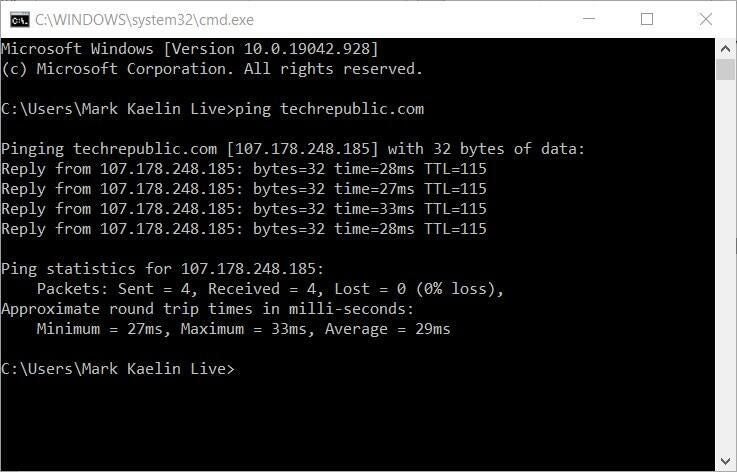
Living and working in an always-connected world means the quality and reliability of your network connection are vital to practically everything you do on your computer or mobile device. Maintaining a quality network connection and troubleshooting a connection that fails are basic skills everyone should, at the very least, be familiar with. Networking: Must-read coverage For Microsoft Windows 10 users, there are 12 basic network commands that you should know and be prepared to use when the occasion calls for it. Some of these commands have equivalents in the Windows 10 GUI, but for many, the command line structure is more effective and efficient. In this how-to tutorial, we list 10 basic Windows 10 network commands users should be able to use for troubleshooting network connection problems. SEE: Windows, Linux, and Mac commands everyone needs to know (free PDF) (TechRepublic) Windows 10 network commands everyone should know The quickest way to get to the command prompt in Windows 10 is to use the Windows Key + R keyboard combination to reach the Run dialog box. Type “cmd” and press Enter to load the command prompt. 1. Ping Of all the Windows 10 network commands, Ping is probably the one almost everyone knows about and has used before. The Ping command allows you to test the reachability of a device on a network. Pinging a host should return four data packets. If the data packets are not returned, you know there is a problem with your network connection. To run the basic command, at the prompt, type: ping [host] Where [host] is the name or IP address of a common host server (google.com, techrepublic.com, etc.). The example below shows what happens when we ping the TechRepublic server. Check out Microsoft Docs for a more advanced look at the Ping command and its variables and switches. 2. IPConfig The IPConfig command is one of the more useful basic Windows network commands everyone should know and use to troubleshoot problems. The IPConfig command displays basic IP address configuration information for the Windows device you are working on. In fact, the command will display information for every network adapter that has ever been installed on your Windows 10 computer. To run the basic command, at the prompt, type: ipconfig The general information includes IP Addresses for both IPv4 and IPv6, the Default Gateway, and the Subnet Mask. Adding the parameter /all to the command will display DNS Server information and details concerning IP Address leases. Check out Microsoft Docs for a more advanced look at the IP Config command and its variables and switches. SEE: Windows 10 and 11 in S Mode: What Is It, and Should You Use It? 3. Getmac Every network-capable device on the internet has a unique identifying number called its MAC address. The number is assigned during manufacture and is established in the device’s hardware. Using the Getmac command, a user can determine the MAC address of their various network devices. Some administrators will use the unique MAC addresses of devices to limit what can and cannot connect to a network. To run the basic command, at the prompt, type: getmac Check out Microsoft Docs for a more advanced look at the Getmac command and its variables and switches. 4. HostName The Windows 10 HostName network command will simply display your Windows 10 computer’s current name. This is the name your computer uses to identify itself to the other devices and servers on your local network. You can find this name in the System information screen in the GUI, but this command is quicker. To run the basic command, at the prompt, type: hostname Check out Microsoft Docs for a more advanced look at the HostName command and its variables and switches. 5. NSLookUp The NSLookUp Windows 10 network command displays information that you can use to diagnose Domain Name System infrastructure. Using NSLookUp without a parameter will show the DNS server your PC uses to resolve domain names into IP addresses. As you can see below, I am using Google’s DNS service because the server provided by my ISP is slow and prone to crashes. To run the basic command, at the prompt, type: nslookup Check out Microsoft Docs for a more advanced look at the NSLookUp command and its variables and switches. 6. Tracert Another handy tool for troubleshooting network connections in Windows 10 is the Tracert command. This command will trace a data packet’s route before reaching its destination, displaying information on each hop along the route. Each hop of the route will display the latency between your device and that particular hop and the IP address of the hop, as shown below. To run the basic command, at the prompt, type: tracert [host] Where [host] is the name or IP address of a common host server (google.com, techrepublic.com, etc.). Check out Microsoft Docs for a more advanced look at the Tracert command and its variables and switches. 7. Netstat The Netstat command displays active TCP connections, ports on which the computer is listening, Ethernet statistics, the IP routing table, IPv4 statistics, and IPv6 statistics. When used without parameters, this command displays active TCP connections. The information this command provides can be useful in pinpointing problems in your network connections. To run the basic command, at the prompt, type: netstat Check out Microsoft Docs for a more advanced look at the Netstat command and its variables and switches. 8. Arp The Windows 10 network command Arp displays entries in the Address Resolution Protocol cache, which contains one or more tables that are used to store IP addresses and their resolved Ethernet physical addresses. To get useful information from the Arp command, you must provide a parameter. The most general parameter is /a, which displays current Arp cache tables for all interfaces. To run the basic command, at the prompt, type: arp /a Check out Microsoft Docs for a more advanced look at the Arp command and its variables and switches. 9. PathPing Generally speaking, the

12 Windows 10 Network Commands Everyone Should Know Read More »

Microsoft AI Program to Upskill ANZ Bridging Skill Gap, Boost Economy

Microsoft has announced an ambitious new initiative intended to equip 1 million people across Australia and New Zealand with essential AI skills by 2026. The AI Skills Initiative is designed to support local workforces facing a rapidly changing digital economy. It will target everyone from individuals building AI systems to those applying AI in everyday roles. The initiative supports Microsoft’s commitment to training 300,000 Australians with digital skills within two years — a target the firm said would be hit by early 2025. How will the AI Skills Initiative help Australians, New Zealanders? The initiative will provide free access to tools, including an AI Skills Navigator, an AI-powered agent to help learners find appropriate skilling pathways for their circumstances. Learning resources will also be available through Microsoft Learn, LinkedIn, GitHub, and Viva Learning. Microsoft intends to curate the AI content specifically for sectors such as public services, education, and not-for-profit organisations so that the training will be relevant and actionable in work contexts. SEE: New Australian Migration Strategy to Deliver Skills for Tech Sector Why is Microsoft focused on upskilling? Microsoft’s upskilling push partly ensures that a broader base of people — including disadvantaged communities — can learn AI. For example, Microsoft said the new program aims to provide tailored training for individuals from diverse backgrounds, including women, people with disabilities, regional communities, and First Nations people. The upskilling initiative will also support Microsoft’s own AI ambitions in the region, with the uptake of AI products dependent on users being knowledgeable and skilled enough to apply them to their work. Previously, AI skilling has been identified as a key gap in the market in Australia, with many employees saying their organisations talk about the tools but do not invest in the people using them. Microsoft’s corporate vice president of Microsoft Philanthropies, Kate Behncken, said the commitment would ensure the workforce was capable as AI transforms “the way we work, learn and connect.” “We want to ensure that every individual has the opportunity to unlock the power of AI,” she said. More Australia coverage Microsoft plans to collaborate to achieve its training target Microsoft has provided some details on plans to work with various partners to achieve its upskilling aims. These collaborators will come from government, business, education, and not-for-profit sectors. Microsoft said it would extend AI training programs to various industries through collaborations with organisations such as tech consultancy and trainer Akkodis, who has trained over 10,000 people in AI skills, and the Institute of Applied Technology – Digital (IATD). The tech giant is exploring partnerships with regional business groups in Australia, such as Business NSW and the Victorian Chamber of Commerce and Industry, supporting skills training for small and medium-sized enterprises (SMBs) to boost AI knowledge and productivity. SEE: Australian SMEs at Risk of Being Left Behind on AI Microsoft’s support for the public sector will include launching an AI Academy program for government agencies and a partnership with the Victorian Government to introduce strategic AI and cybersecurity initiatives to enhance digital literacy. Microsoft will provide AI training to younger learners The company is also working with schools, vocational institutions, and universities to integrate AI learning into curricula to educate future generations with the skills needed to support an AI-powered economy. For example, the global tech firm’s AI Amplified program aims to help 175,000 students develop the skills needed for tomorrow’s workforce. Through partnerships with organisations such as KPMG and Year13, the initiative will reach over 50,000 young people in the next year. AI skills could help local workers take on new jobs The Tech Council of Australia has previously predicted that AI could create up to 200,000 new jobs by 2030, encompassing roles such as software development, data centre operations, and data management, as well as roles supporting the scaling, governing, and managing of AI systems. Many future roles will involve the use of AI. Three out of four business leaders in Australia already consider AI skills a must-have for job candidates, according to Microsoft’s Work Trends Index released in 2024. This was higher than a global average of 66%. Steven Worrall, Microsoft’s regional managing director, said that as many people as possible should be able to access and benefit from the technology, given the wide reach of AI’s impact. “That will require tools, infrastructure, and training, so we’re working hard on all those fronts,” he said. source

Microsoft AI Program to Upskill ANZ Bridging Skill Gap, Boost Economy Read More »

Top Tech Conferences & Events to Add to Your Calendar in 2025

April 1: CISO Perth in Perth, Australia [in person] April 1-2: Generative AI Summit in London, UK [in person] April 3-4: TECHSPO in Los Angeles [in person] April 4-5: HBS/MIT Sloan Technology and National Security Conference in Cambridge, Mass. [in person] April 7-8: Gartner Security & Risk Management Summit in Dubai, UAE [in person] April 7-9: QCon in London, UK [hybrid] April 9-11: Google Cloud Next ’25 in Las Vegas [in person] April 9-10: SecureWorld in Philadelphia [in person] April 9-17: SecureWorld in Toronto, ON [in person] April 10-11: TECHSPO in Vancouver, BC [in person] April 13-18: SANS Cybersecurity Training in Orlando, FL [in person] April 14-16: Quantum Tech USA in Washington DC [in person] April 14-16: Gitex Africa in Morocco [in person] April 16: Georgia Technology Summit in Atlanta, GA [in person] April 16-17: Generative AI Summit in San Jose, Calif. [in person] April 17: Women Impact Tech in Chicago [in person] April 23-25: Gitex Asia in Singapore [in person] April 24: Data Architecture in Singapore [in person] April 28-29: Gartner Conferencia Data & Analytics in Sao Paulo, Brazil [in person] April 28-May 1: RSA Conference in San Francisco [in person] April 28-May 2: The Web Conference 2025 in Sydney, Australia [in person] source

Top Tech Conferences & Events to Add to Your Calendar in 2025 Read More »

Entrepreneurs Don't Need to Be Tech Savvy to Build Their Own Apps Anymore

TL;DR: Twidget is a no-code API and app builder that’s on sale for $39 (reg. $600). Entrepreneurs especially need an extra layer of control over their digital presence. However, that usually requires a level of tech expertise that would be reserved for skilled IT workers. However, there’s a new tool that makes the entire process simpler. Twidget is a no-code platform designed to simplify the process of creating web apps, APIs, and websites. You don’t need to be a tech expert to manage your digital presence anymore, and a lifetime subscription to Twidget is even on sale for only $39 (reg. $600). What can Twidget do? Twidget gives you intuitive tools to build digital solutions without writing a single line of code. Its flexibility enables you to create custom projects, prototype apps, and even connect third-party APIs to expand your app’s functionality. With Twidget, you can easily build, customize, and launch applications that meet your business needs, from automating marketing campaigns to integrating complex data pipelines. One of Twidget’s core tools is its API builder, which enables professionals to seamlessly integrate data between multiple systems and platforms. Whether you’re connecting your CRM to an email marketing platform or syncing inventory management with an e-commerce site, Twidget makes it simple to automate these processes. Twidget also excels in data management, offering secure storage and real-time synchronization. Twidget goes beyond just building apps. It also enables you to monitor and optimize performance. You can track the effectiveness of your apps and APIs in real-time, too. Twidget’s event scheduling tool even allows you to automate actions based on specific triggers. You could schedule posts for social media campaigns or automate inventory updates for e-commerce businesses, reducing the need for manual intervention. Create the tools you need to succeed and get a lifetime subscription to Twidget.io while it’s still on sale for $39. Prices and availability are subject to change. source

Entrepreneurs Don't Need to Be Tech Savvy to Build Their Own Apps Anymore Read More »

How to Optimize Your VoIP Network Before the Next Call

You’ve got your Voice over Internet Protocol network up and running smoothly — congratulations! One of the great things about a well-set-up VoIP system is its reliability. For the most part, you can count on it to hum along and support your calls, chats, and team meetings. But even the best network setups can face stress. If your business expands to new locations, as more callers start using WiFi instead of traditional phone lines, or deploys new security measures — your previously perfect system may start to have performance problems. If you have tried all the basic VoIP troubleshooting fixes, it might be time to take a closer look at how to optimize your VoIP network. A well-optimized network can make all the difference for professionality. In this post, we’ll walk you through practical steps to ensure your VoIP network is primed and ready for your next call. 1 RingCentral RingEx Employees per Company Size Micro (0-49), Small (50-249), Medium (250-999), Large (1,000-4,999), Enterprise (5,000+) Medium (250-999 Employees), Large (1,000-4,999 Employees), Enterprise (5,000+ Employees) Medium, Large, Enterprise Features Hosted PBX, Managed PBX, Remote User Ability, and more 2 Talkroute Employees per Company Size Micro (0-49), Small (50-249), Medium (250-999), Large (1,000-4,999), Enterprise (5,000+) Any Company Size Any Company Size Features Call Management/Monitoring, Call Routing, Mobile Capabilities, and more 1. Prioritize VoIP traffic on the Network VoIP is super sensitive to one little thing: latency. Now, what exactly is latency? Think of it as the time it takes for your voice to travel from your computer or phone to its destination. Unlike traditional phone calls, where the connection is almost instant, VoIP relies on data packets being sent and received. If there’s even a slight delay in transmission, things can get messy really quickly. Imagine talking to someone and hearing them respond with a weird lag or, even worse, having your words cut off mid-sentence! Not exactly the smooth conversation you were hoping for. So, how do you handle this? VoIP networks have something called Quality of Service (QoS) features that allow companies to prioritize VoIP traffic over everything else on their networks. In other words, they ensure that your VoIP sessions get priority over things like web browsing so that your calls sound crystal clear. Some routers and switches have user-friendly interfaces that allow you to tweak QoS settings on your own. But if you don’t know what that means, your best bet is to check out the manufacturer’s website or user manuals. They often have step-by-step instructions tailored to their specific devices. Learn more about QoS and why organizations should use it. 2. Assess your bandwidth bottlenecks Bandwidth refers to the maximum amount of data that can be transmitted over an internet connection in a given period. In our highway example, we could say it’s the maximum number of cars (data packets) that can fit on the highway going the same speed. Now, think of rush hour. Even with multiple lanes, the highway gets congested if too many cars are trying to use it at once. Likewise, your network can get jammed when too much data has nowhere to go. If you don’t have enough bandwidth, you’ll face a hot mess! For example, a sudden surge in incoming or outgoing calls during peak hours might cause lag times, voice distortion, dropped calls, echoes, or delays. Or, overloading a low-speed DSL connection or a wireless network with too many callers might do similarly. These scenarios are especially common as teams grow or you add new connections. SEE: Learn how to fix dropped calls in just a few minutes. To figure out if bandwidth is your problem, analyze your usage patterns, considering factors like the number of simultaneous calls made, the size of files being transferred during calls, and any other data-intensive activities on your network. If your internet connection constantly struggles, it’s time to upgrade. Higher-speed options like fiber or cable can keep your communications running smoothly, even as your demands grow. 3. Upgrade your router Not all hardware is created equal. What served you well in the beginning, like a mid-range router, may start to buckle under the pressure of higher traffic volume or bandwidth-intensive activities. Equally, your router may start to stutter as your organization grows and more people need more bandwidth to work with. If so, it might be time to upgrade to a newer router built for VoIP communication. Investing in a high-quality router with advanced QoS features is one key to optimizing your VoIP experience. These routers are designed to prioritize voice traffic over other data. This helps prevent call drops, echoes, or other issues caused by your network, ensuring that you can call reliably even during times of heavy network congestion. 4. Implement a jitter buffer While the name may sound funny, adding a jitter buffer can greatly improve call quality. These buffers help regulate the flow of incoming data packets, reducing delays and choppiness to give you smoother calls. Think of them like tiny waiting rooms for data packets. As packets arrive, the buffer stores them temporarily, regardless of their arrival time. Then, it releases them in a steady stream to your device, ensuring a consistent flow of information. Kind of like how passengers gather at the gate and then all board the plane together. To implement a jitter buffer, you need to configure it within your VoIP system. The specific process may vary depending on the software or hardware you’re using. Here’s a general overview of the steps: Determine the appropriate buffer size: The buffer size should be set based on your network conditions and the level of jitter you’re experiencing. Smaller buffer sizes reduce delay but might be less effective in compensating for high jitter levels. Set the buffer delay: This parameter determines the amount of time the packets are stored in the buffer before being played out. Adjust the buffer delay based on the level of jitter you’re experiencing. Configure other settings: Depending on your VoIP system, you may

How to Optimize Your VoIP Network Before the Next Call Read More »